











These may seem like just a few new script steps, but they open a whole new world of efficiency in creating PDF files for you to send out to customers.
A few scenarios to set the scene:
- A quote needs a cover sheet and some standard terms and conditions.
- A contract has a selection of standard pages and individual pages.
- A combination document contains a stored drawing and the specification sheet.
- A proposal needs an index, section dividers, specification content, and appendix with product information sheets.
- Multiple upload files need to be combined into a single document
- A PDF needs to be password protected
FileMaker has always had many ways to manipulate PDF files, but apart from some very clever advanced tricks, it has always needed to write PDFs out to a hard drive. On Server, this has also been hampered by our inability to Export Field Contents. Recently the favoured method for many to export on a Server, has been using the DataFile steps: 1. Create a file 2. Open it 3. Fill it with the Bytes of a container field, and most importantly, 4. Close it!
This is the first thing fixed in FileMaker 2026—Export Field Contents is supported on Server! That, in itself, is a massive help. But let’s not stop there and just walk away.
There is always a penalty to writing out to any form of external storage, and doing it just so we can combine PDFs carries some overhead (write cycles, HD speed), and usually leaves a trail of debris behind. Let’s look at what we can do now:
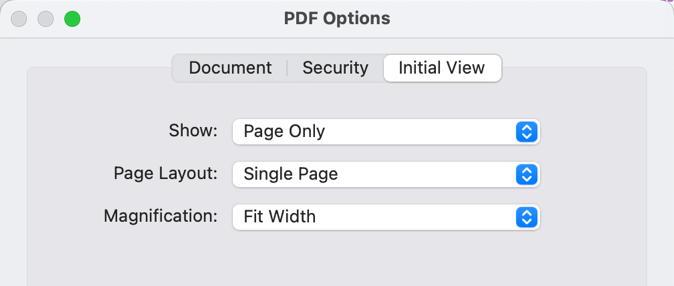
Create PDF: This creates a new blank placeholder PDF in memory for you to use. You have access to the metadata and first view options (really, how many of you have ever used these?)
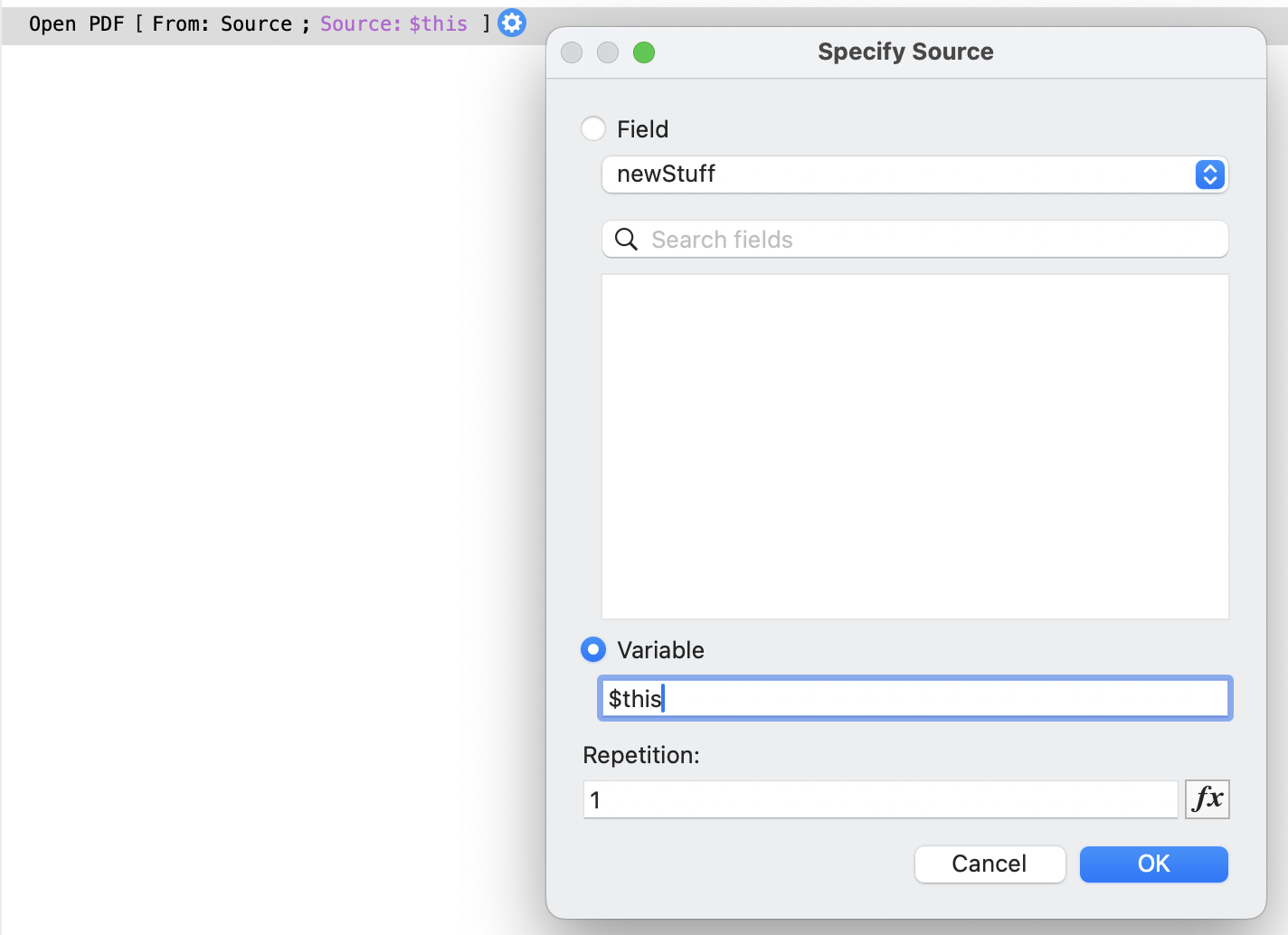
Open PDF: This opens a PDF ready for edit, and populates it either from a File, a Field OR a Variable containing binary content. Additionally, you can specify a password to open the file if it is protected.
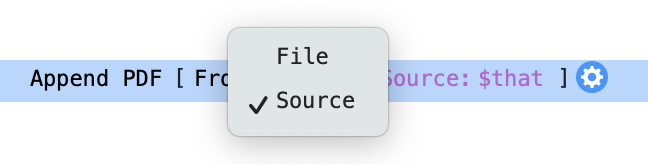
Append PDF: Add this currently referenced PDF to the end of one open in memory. Again this can be from a File, Field or a Binary variable.
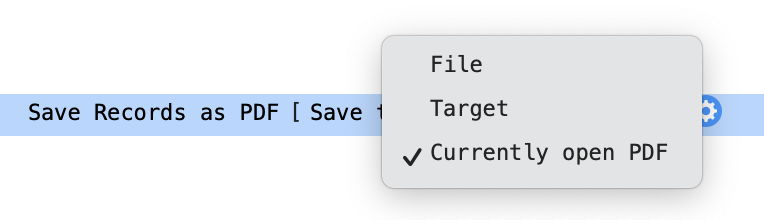
Save Records AS PDF: Now has a new option, to not only save to a File (path defined by variable) but directly to a Container field OR a Variable. The key third option is to save to the currently opened PDF file.
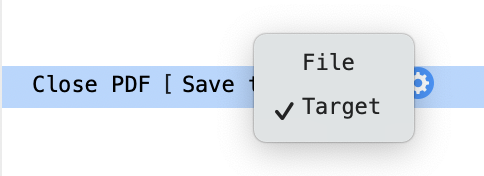
Close PDF: The final step to finalise the file and write it somewhere. Our choice is to save it to a Field or a Variable. This acts as a regular Save step as you can save directly onto a drive from the path variable.
Cancel PDF: Throws away whatever is held in memory with no consequences, no other options.

Some behaviours you need to know about:
- You can only have one PDF open at a time in this way.
- You get no visible marker that you have one open, until you try and open another, where you’ll get an 833 error, with the message that you need to “Close the open file first”.
- The file remains ‘open’ until explicitly closed.
Once you have opened a file, it lives in the mysterious Space Zero (ghost town filled with Global variables), attached to the open FileMaker File. Close the file, and your PDF vanishes. However, until you explicitly Close or Clear the file, it remains open in memory. It is not attached to any script that you have used so far to get here, meaning that you can start the process, stop, and then ask a user which attachments need appending, then run another script to find and add them to the open file. If you like belt and braces, you can save this partially complete file to a container field and then re-open it to add more content.
This provides a way to pre-pend a cover sheet that you can’t create until the very end. Maybe some form of index, as you might not know what the attachments or pages are yet. Along the way, build a list of the page titles, and if you are feeling very clever, create some markers to track page numbers, save your mostly completed PDF, go to an index layout, and populate it with your collected data. Open a PDF, Export PDF your index to this file, then append your part-completed content.
Remember most of that is being done in memory!
Mixed page sizes. Each page or document you add will continue to be the original size of that document, so in my case I can add A5 (or A3) information sheets to the end of mostly A4 pages. The order you add them means you can preserve a large drawing file as part of the overall new file in the middle of a final PDF.
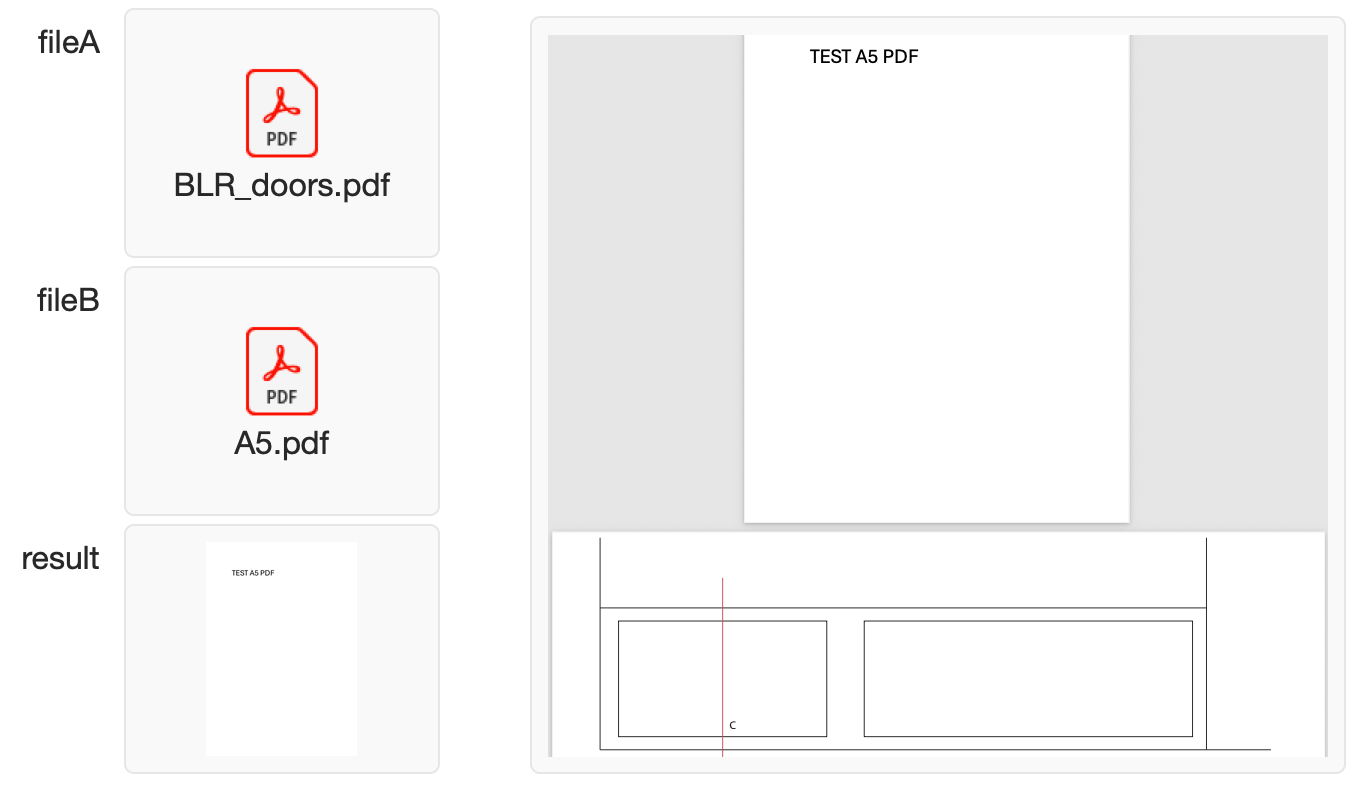
The freedom to collect stored or created PDF files, allows you to construct hybrid documents containing files that are temporarily exported or saved to the server, some standard pages held in a documents table, and quotes or project plans from live FileMaker records. All the scenarios mentioned above are within easy reach!
This dramatically changes how we approach the task of building complex PDFs
One word of warning: Claris does not re-use library objects intelligently, so if you have a massive logo on every page you may end up with multiple copies in the final file, making it larger than it needs to be.
I have built sample scripts with all the scenarios described above, and have not yet broken anything, but I am sure there are limits for performance. As always — test before you deploy!